
My automated builds stopped working, and I had no idea why.
I had been hosting and managing my blog on AWS Amplify since I launched it last year, and I couldn’t be happier with it. Amplify gave me all that it promised and more. Quick to connect to GitHub, effortless to deploy, CI/CD out of the box. Every push to the repository rebuilt and redeployed the site for me. Exactly what I wanted: ship fast, sort the details later. Except “later” arrived sooner than I expected.
In fact, I soon realized there are scenarios where Amplify doesn’t tell you when you’re starting, and I hit one of them when I decided to do what I thought was a simple thing. I updated my GitHub username. What followed was not what I expected.
What happened#
When I updated my GitHub username from suzanamelomoraes to suzanamelo-m, I didn’t think about the obvious: all repository URLs change with it.
What I also didn’t know is that AWS Amplify stores a hard link to the original repository URL and cannot automatically follow username or repository renames.
For example, from my old repo URL:
https://github.com/suzanamelomoraes/suzanamelo
to my new repo URL:
https://github.com/suzanamelo-m/suzanamelo
The CI/CD stopped, and no updates I made on my application were going live. I was pushing my changes to my remote repository at https://github.com/suzanamelo-m/suzanamelo, while AWS Amplify was still reading from the previous URL.
What Amplify doesn’t tell you when you’re starting out#
I jumped to AWS Amplify to try to learn how to fix the issue. I went to the AWS Amplify console to check item by item where a fix could be applied.
I consulted the Amplify documentation for troubleshooting suggestions. I didn’t find anything related.
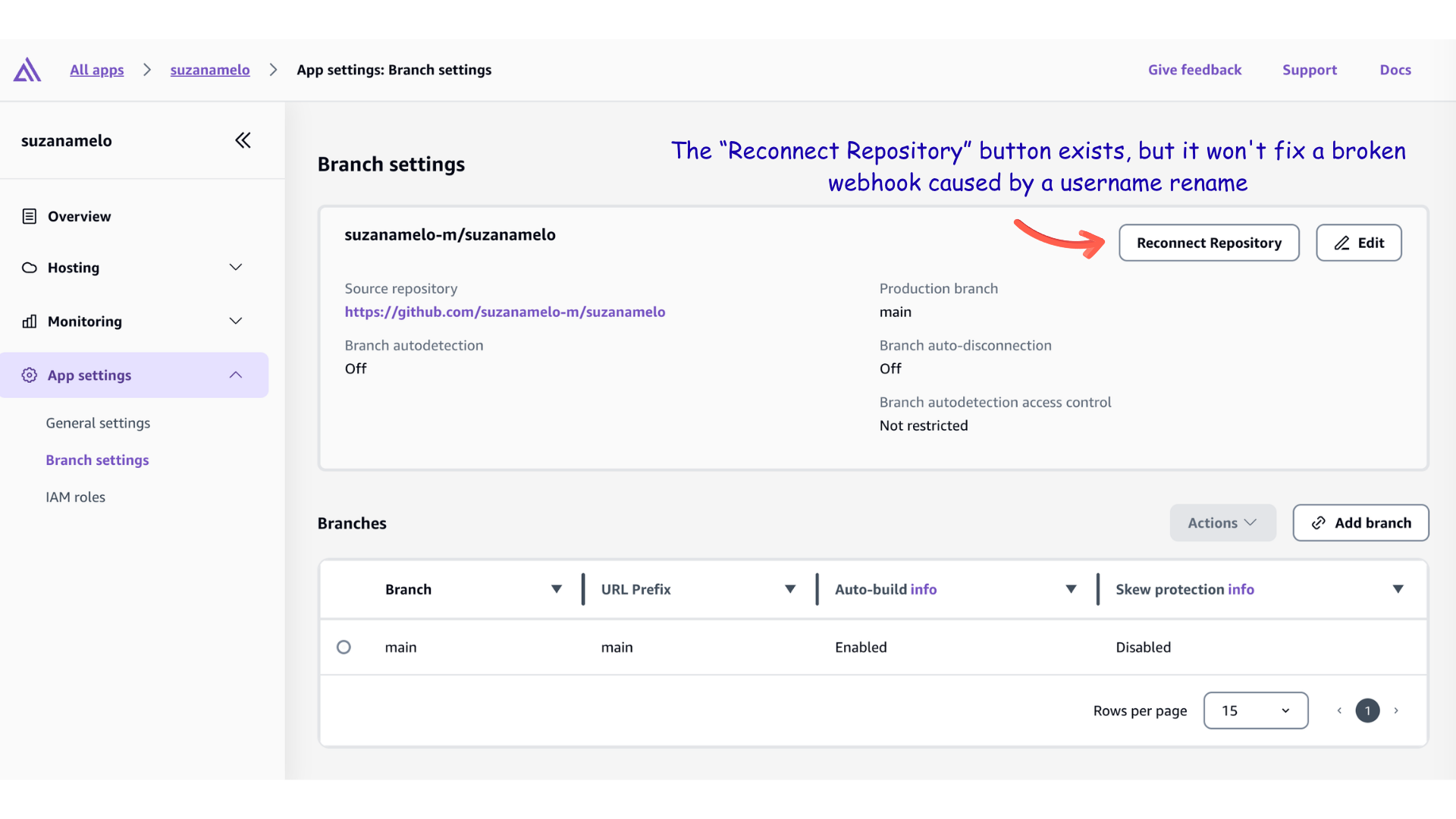
I tried to reconnect to the repository by going to the Branch settings dropdown in App settings and clicking the “Reconnect repository” button. When someone renames their GitHub username, GitHub creates a redirect from the old URL to the new one, but only for a while. I thought that Amplify would just follow it. It didn’t.
GitHub’s redirect is a browser-level courtesy. Amplify’s webhook was registered against the original URL and doesn’t follow it.
The finding#
Finally, I searched the internet, asked AI for help, and found that I couldn’t find the fix in the AWS Amplify console. Changing the repository URL directly in the Amplify Console is not supported; GitHub’s automatic redirect doesn’t fix Amplify’s broken webhook. The hard link must be updated via CLI.
When you need to use the update-app command#
I also found out that updating information via CLI was a fix not only for my problem. More scenarios share the same root cause and the same solution.
Scenario 1 — GitHub username change (my case): AWS Amplify cannot automatically follow username renames. When I renamed my username from suzanamelomoraes to suzanamelo-m, my automated builds stopped working.
Scenario 2 — Renaming a repository: Renaming a repository also changes the GitHub URL, and since Amplify is connected via that URL, auto-build stops working. The same CLI fix applies.
Scenario 3 — Moving from a personal to an organization account: Multiple people have reported needing to move their repository from a personal GitHub profile to an organization’s profile, but there’s no way to do it in the AWS Amplify UI console without creating a whole new app. This is a common scenario when a solo project grows into a team project.
Scenario 4 — Switching Git providers: People migrating from Bitbucket to GitHub also hit the same wall: the repository URL changes completely and Amplify breaks. The AWS CLI docs confirm the command works across providers, using oauthToken for Bitbucket and CodeCommit, and accessToken for GitHub (for this article, I’m covering only accessToken for GitHub as this is the one I use, but I’ll include helpful links in the list of resources at the bottom).
Scenario 5 — Switching between Bitbucket accounts: Even switching between different Bitbucket accounts connected to Amplify requires the same update-app CLI workaround.
How to fix it#
Since my repository is on GitHub, I’m describing the fix I made to it. I’ll leave links in the Resources to help you if you’re running into issues with other web-based Git repository hosting services.
1. Prerequisites#
Before running the fix, you need:
- The AWS Command Line Interface (AWS CLI) installed on your machine (you can check out how to do it here)
- Access to the AWS Console (to find your App ID)
- A GitHub Personal Access Token with
reposcope (useoauthTokenfor Bitbucket and CodeCommit) - Your Amplify App ID
Note: If you set up your Amplify app some time ago, you may be using the older OAuth method rather than the GitHub App. Apps deployed via AWS Amplify using the older OAuth method continue to work for CI/CD, but AWS strongly recommends migrating to the GitHub App for new or updated connections.
2. Step-by-Step Fix#
Step 1 — Generate a GitHub Personal Access Token#
- Go to: https://github.com/settings/tokens
- Click Generate new token → Generate new token (classic)
- Give it a name, e.g.
Amplify Repo Update - Select the
reposcope - Click Generate token and copy it immediately (you won’t see it again)
Security tip: Delete this token after confirming the fix is working. It is only needed for the one-time
update-appcommand.
Step 2 — Find Your Amplify App ID#
- Open the AWS Amplify Console
- Select your app
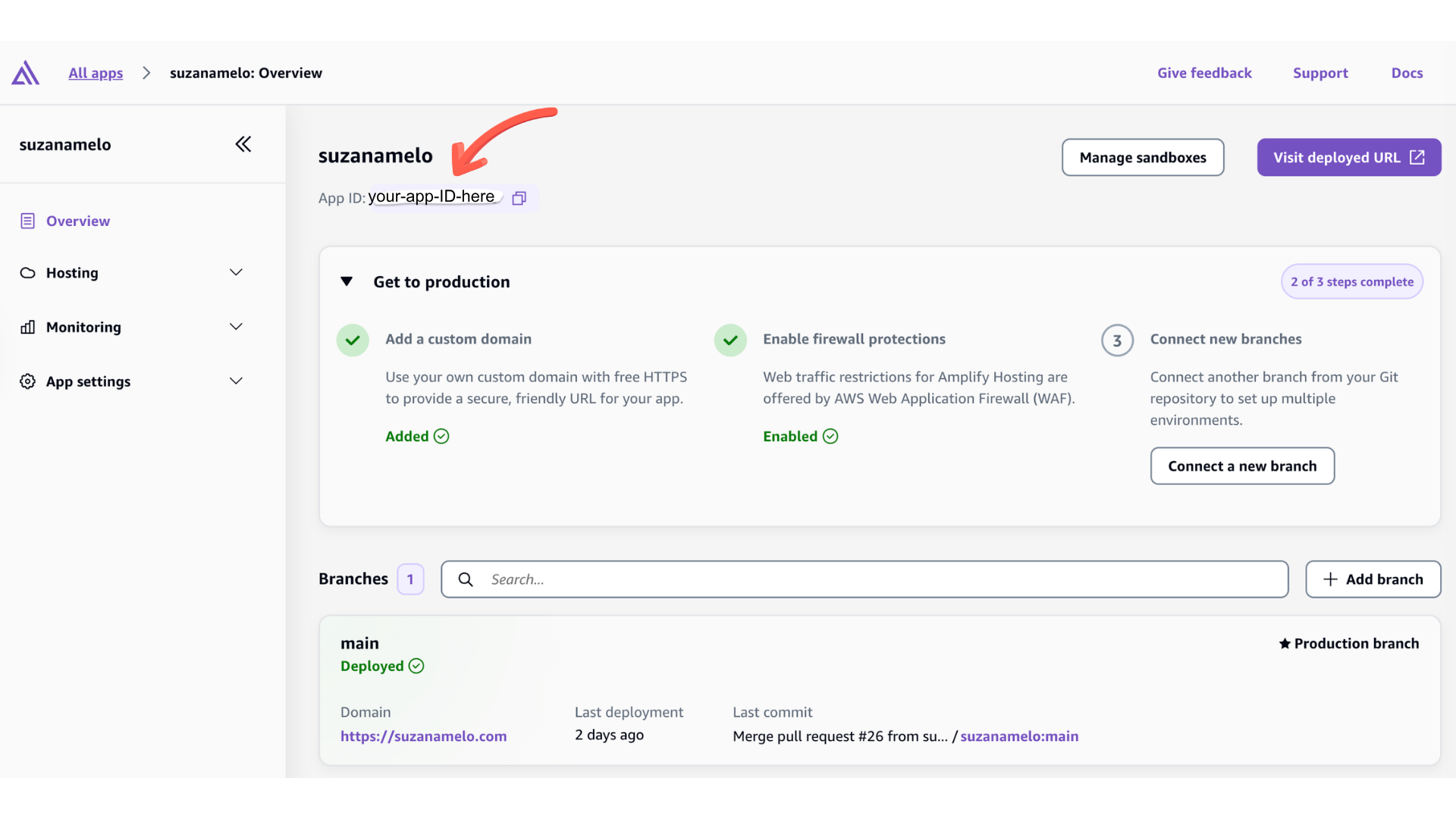
- Look for the App ID — it can be found in the Console Overview and starts with
dfollowed by letters and numbers (e.g.d2x3uf5yeo5smt) - Also note the region from your console URL, e.g.
us-east-1,eu-north-1orap-southeast-2
Step 3 — Set Up AWS CLI Credentials (aws login)#
Before you can run any AWS CLI command in your terminal, you need to get AWS credentials for local development. Credentials exist to authenticate your local machine or applications and authorize programmatic requests to Amazon Web Services.
The AWS CLI command aws login lets you start building immediately after signing up for AWS, as easily as you do in the AWS Console. Running aws login in your terminal opens your default web browser to authenticate as you would via console.
Once authorized in the browser, it creates short-lived, identity-based credentials for your command-line tasks, eliminating the need to use or store long-lived static access keys, which are always at risk of accidental exposure, leading to security breaches.
To get authenticated:
3a. Check your CLI version
To use AWS login, you need to have AWS CLI version 2, which must be 2.32.0 or later.
If you just installed the AWS CLI in the prerequisites step, jump to 3b below.
To check the version you have, run:
aws --version
If your version is older than 2.32.0, take a look at the Migration guide for the AWS CLI version 2 to learn about the differences between the versions and avoid any breakage.
If there are no breaking changes, follow the Migration guide for the AWS CLI version 2. It covers both uninstalling v1 and installing v2.
3b. Log in and set up your Region
To start the login process, run:
aws login
If it’s the first time you run aws login or you have not set a default Region, the CLI prompts you to specify the AWS Region of your choice. You will see a prompt like that in your terminal:
No AWS region has been configured. The AWS region is the geographic location of your AWS resources.
If you have used AWS before and already have resources in your account, specify which region they were created in. If you have not created resources in your account before, you can pick the region closest to you: https://docs.aws.amazon.com/global-infrastructure/latest/regions/aws-regions.html.

You are able to change the region in the CLI at any time with the command "aws configure set region NEW_REGION".
AWS Region [us-east-1]:
Once you define your region, the CLI will open a sign-in session in your default browser, and you will see the sign-in options page.
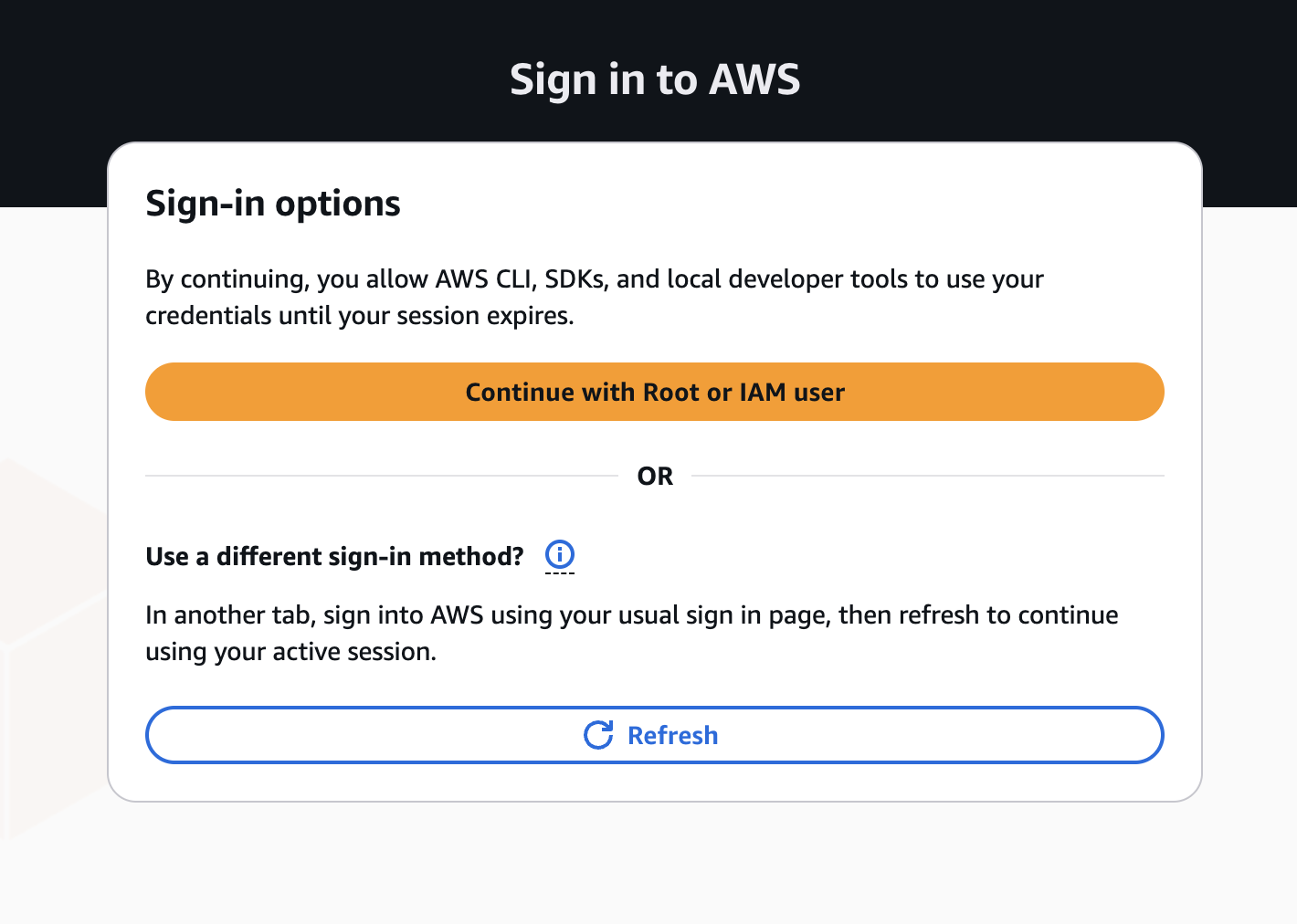
aws login, your browser opens to this page. Select ‘Continue with Root or IAM user’ to sign in with your IAM credentials
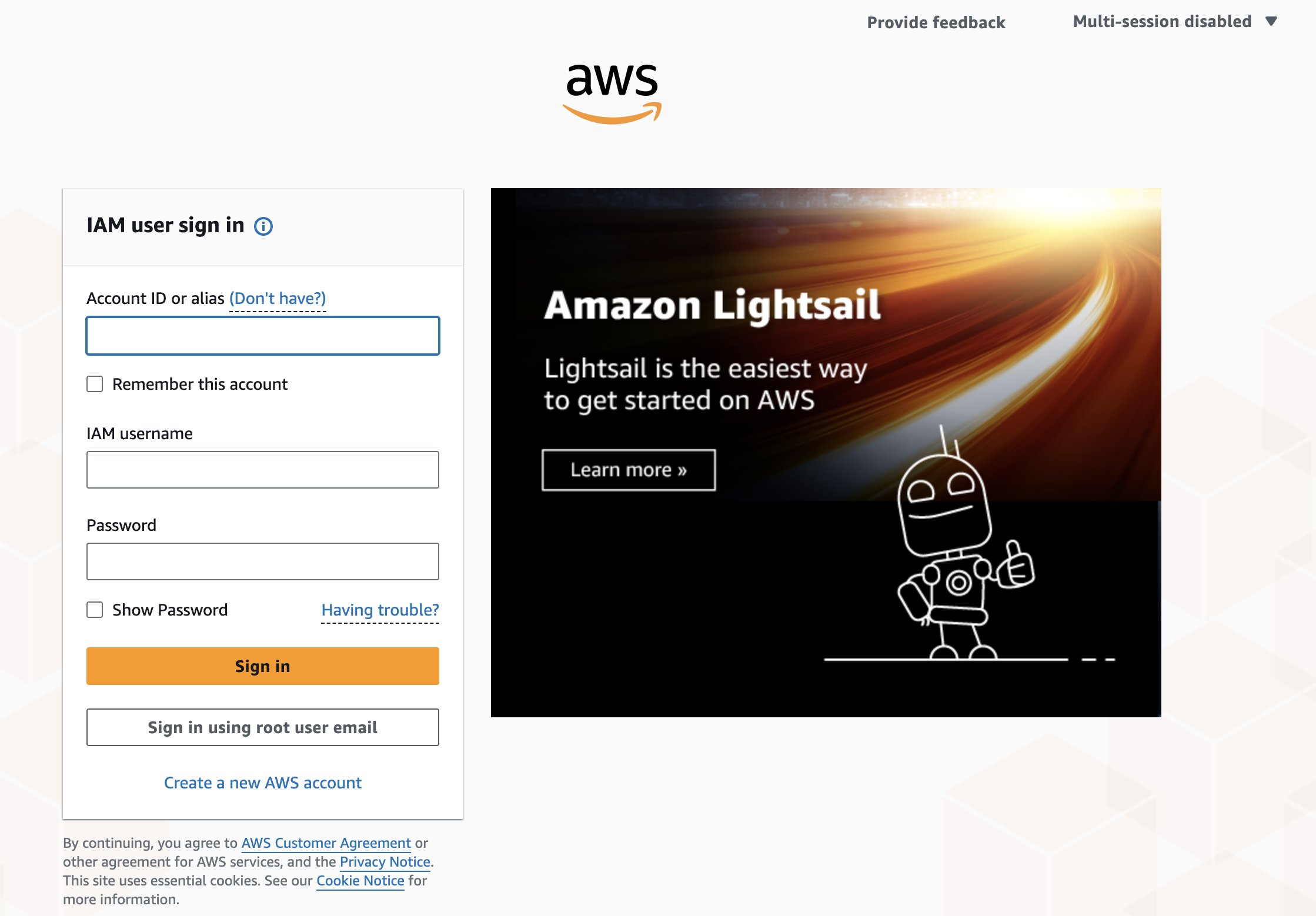
Select “Continue with Root or IAM user” and log in to your AWS account as you would normally.
Even though you will see a button saying “Continue with Root or IAM user”, AWS best practices recommend avoiding using the Root account for those types of tasks. The recommendation is to create a user to manage your project and give it only the access it needs.
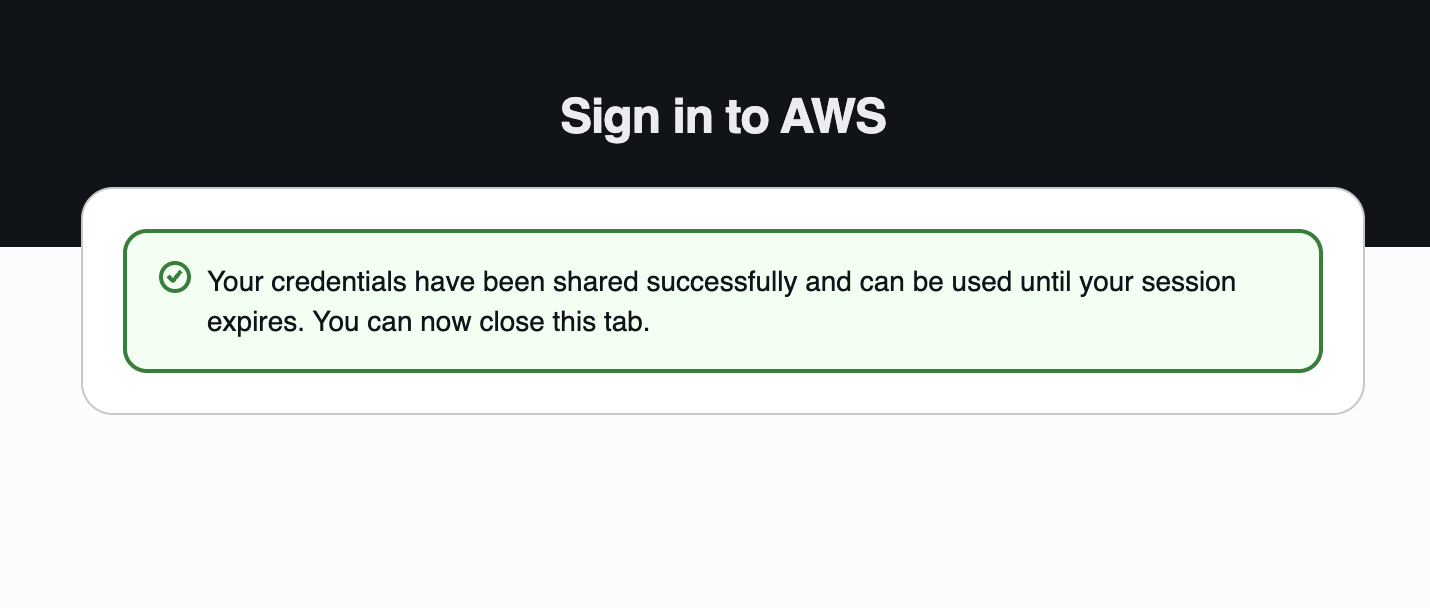
Once you finish the sign-in process, you will be directed to a screen confirming that your credentials have been shared successfully.
3c. Configure a named profile
YYou’re now authenticated and ready to run CLI commands. If you’re managing multiple projects or environments, you can also create a named profile to keep credentials organized. Choose a name that makes sense to you and your application. For this example, I’m going to call it “blog”.
To create a profile, run aws login and set a name for your profile. The same command works when you want to authenticate specifically for this application.
aws login --profile blog
3d. Update region later if needed
As you previously saw when you ran that aws login for the first time, you are able to change the region in the CLI at any time with the command:
aws configure set region NEW_REGION
If you are updating your region under your profile (step 3c)
aws configure set region NEW_REGION --profile blog
Step 4 — Update the Repository in AWS Amplify#
Run the following command, replacing the placeholders with your actual values:
aws amplify update-app \
  --app-id YOUR_APP_ID \
  --repository https://github.com/NEW_USERNAME/REPO_NAME \
  --access-token YOUR_GITHUB_TOKEN \
  --region YOUR_REGION \
  --profile blog  # omit this line if you skipped step 3c
A successful response will include JSON output with your app details. Here is what the structure looks like, with sensitive values redacted:
{
  "app": {
    "appId": "YOUR_APP_ID",
    "appArn": "arn:aws:amplify:YOUR_REGION:YOUR_ACCOUNT_ID:apps/YOUR_APP_ID",
    "name": "your-app-name",
    "repository": "https://github.com/suzanamelo-m/suzanamelo",
    "platform": "WEB",
    "createTime": "...",
    "updateTime": "...",
    "environmentVariables": {},
    "defaultDomain": "your-app-id.amplifyapp.com",
    "enableBranchAutoBuild": true,
    "enableBranchAutoDeletion": false,
    "enableBasicAuth": false,
    "productionBranch": {
      "lastDeployTime": "2026-06-15T10:00:00.000Z",
      "status": "SUCCEED",
      "branchName": "main"
    }
  }
}
Two things to confirm from this output: the "repository" field now shows your new URL, and "status": "SUCCEED" confirms your last deployment is intact.
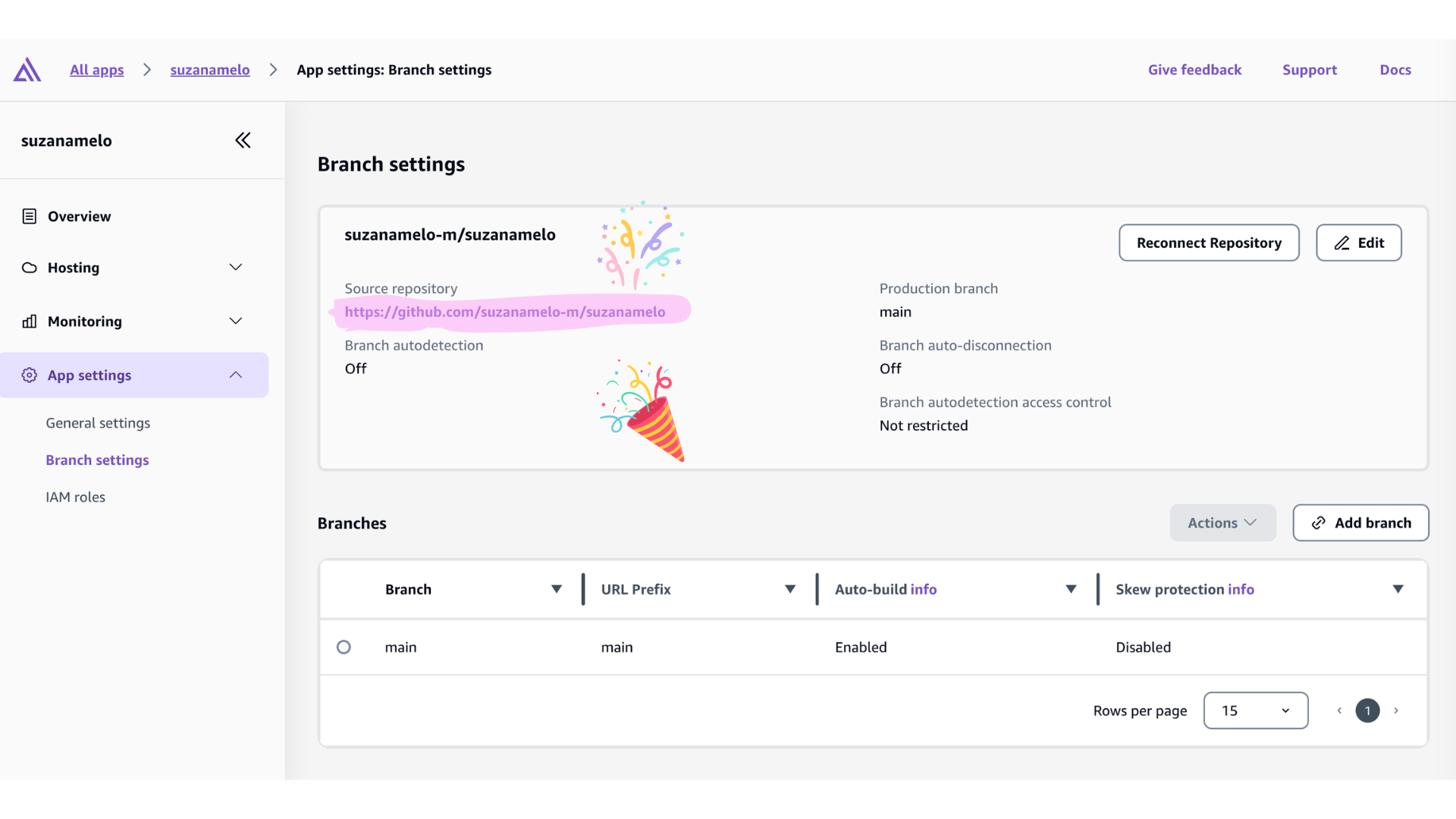
If you open the Amplify Console after running the command, you should also see the new repository URL reflected under App settings → Branch Settings.
Step 5 — Verify & Trigger a New Build#
Option A — Via the Amplify Console:
- Go to the Amplify Console and open your app
- Click on your branch (e.g.
mainorprod) - Click the Run build button in the top right corner
Option B — Via the AWS CLI:
aws amplify start-job \
  --app-id YOUR_APP_ID \
  --branch-name main \
  --job-type RELEASE \
  --region YOUR_REGION \
  --profile blog
Step 6 — Delete the GitHub Token#
- Go to: https://github.com/settings/tokens
- Find the token you created
- Click Delete
The Amplify connection will continue to work after the token is deleted. The token was only needed for the one-time
update-appcommand, not for ongoing builds.
Going further: managing multiple AWS environments#
AWS profiles are named collections of credentials and settings that let you manage multiple AWS accounts or environments from your local machine, without mixing credentials.
Instead of constantly overwriting your default settings, profiles let you manage different environments, permission levels, and accounts without re-authenticating every time.
You can use AWS profiles for a variety of management cases, for example, to separate your [development], [staging], and [production] accounts to reduce the risk of accidental changes, handle different clients and projects in different regions, or, in my case, to create a separate environment specifically for my blog-related credentials.
Useful Commands#
List all configured profiles:
If you authenticated using
aws login, your credentials are temporary and won’t appear here. Useaws sts get-caller-identity --profile blogto verify your active session instead.
cat ~/.aws/credentials
cat ~/.aws/config
Run any AWS command with a specific profile:
aws <command> --profile blog --region us-east-1
Set a profile as the default for a terminal session:
export AWS_PROFILE=blog
Verify which identity is active:
aws sts get-caller-identity --profile blog
Update a profile’s region:
aws configure set region NEW_REGION --profile blog
Delete a profile — manually remove the relevant block from both files:
nano ~/.aws/credentials   # Remove [blog] block
nano ~/.aws/config        # Remove [profile blog] block
Wrapping up#
AWS Amplify hosting is an incredible tool, especially when you want to benefit from the AWS infrastructure (CloudFront, Route 53, IAM). In my case, I already had my custom domain and Route 53, which made the setup even smoother.
It’s also very handy when you want to avoid third-party services and rely on AWS native tools for authentication and databases.
AWS Amplify focuses on enhancing the user experience and making it even easier to manage your applications through its UI console. But not every issue can be sorted in the UI console. We just covered one issue that Amplify can’t protect you from, but now you know exactly how to handle it when it happens.
This fix taught me more than I expected. Not just about how Amplify manages repository connections, but about how the AWS CLI has evolved. aws login is a genuinely useful addition, and I want to write more about it properly.
If you’ve hit a different Amplify wall or you’re curious about more CLI basics, let me know. Your comments or questions might become the next article. 🤗
Resources#
- New to AWS Amplify hosting? Start here — From Procrastination to Publishing: How AWS Amplify Helped Me Finally Start Blogging
- AWS CLI installation guide: https://docs.aws.amazon.com/cli/latest/userguide/getting-started-install.html
- AWS CLI
update-appfull reference: https://docs.aws.amazon.com/cli/latest/reference/amplify/update-app.html - GitHub Personal Access Tokens (classic): https://github.com/settings/tokens
- AWS login: https://docs.aws.amazon.com/cli/latest/userguide/cli-configure-sign-in.html
- Simplified developer access to AWS with ‘aws login’: https://aws.amazon.com/blogs/security/simplified-developer-access-to-aws-with-aws-login/
- AWS Amplify Troubleshooting: https://docs.amplify.aws/react/build-a-backend/troubleshooting/
- The
start-jobCLI reference: https://docs.aws.amazon.com/cli/latest/reference/amplify/start-job.html - Migrating from OAuth to the Amplify GitHub App (for users on older setups): https://docs.aws.amazon.com/amplify/latest/userguide/setting-up-GitHub-access.html
- Bitbucket — changing accounts: https://repost.aws/questions/QU3ibFSag6QdmlrQA55tr4-g/amplify-bitbucket-sign-to-different-account
- Migrating from Bitbucket to GitHub: https://www.isme.es/2023/09/10/migrate-blog-source-from-bitbucket-to-github.html